
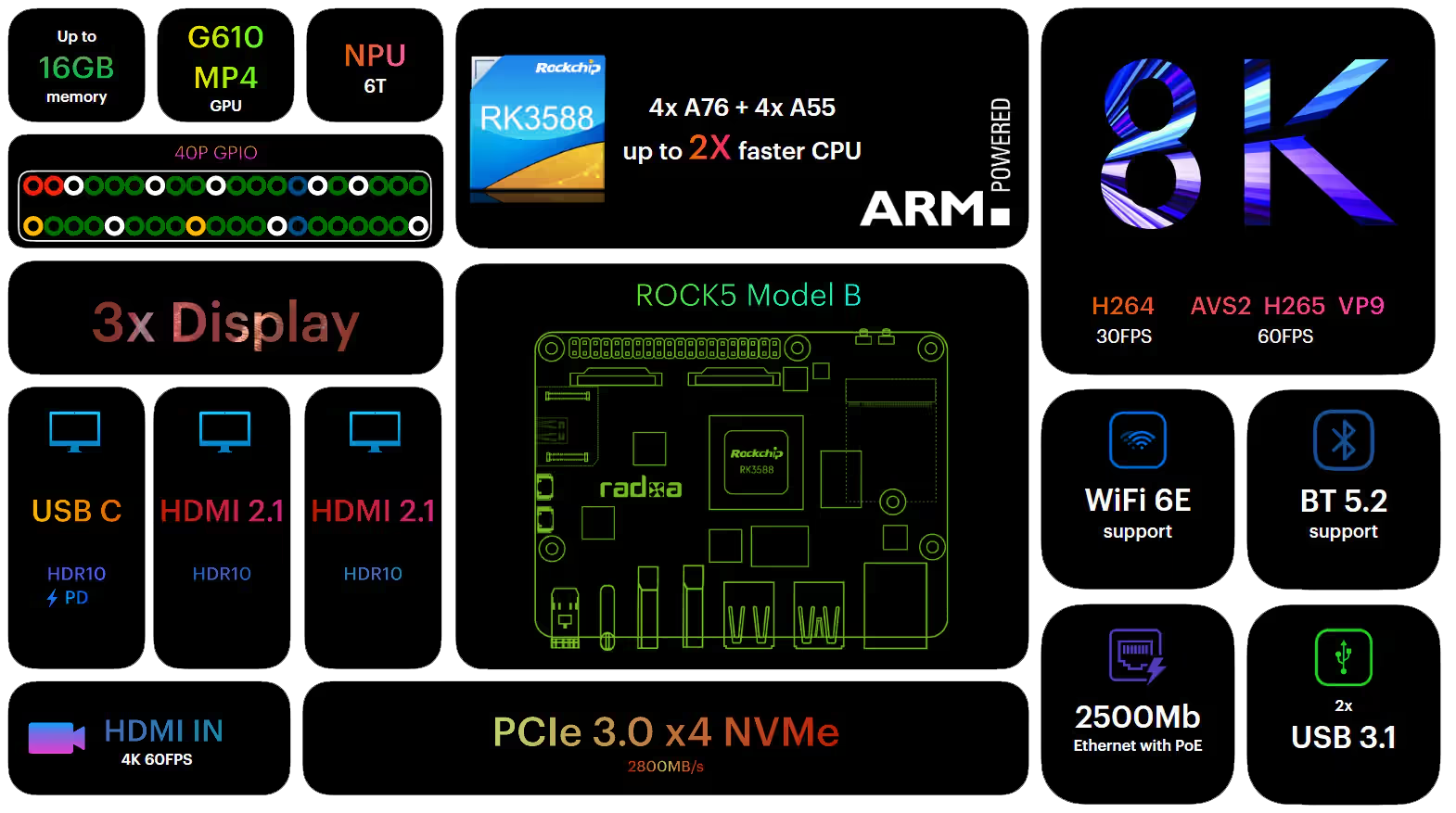
The tech community has seen a surge of single-board computers (SBCs) over the past few years, offering tech enthusiasts a plethora of options. However, few come as power-packed and future-ready as the Radxa ROCK 5 Model B. This potent Raspberry Pi alternative brings to the table a set of features that puts it a notch above many of its competitors.
Historically, the default choices for booting operating systems on such devices have been either through a microSD card (microSD) or embedded MultiMediaCard (eMMC) memory. While both methods have served their purpose, they come with their own sets of limitations, primarily in terms of speed and overall system responsiveness. Enter the NVMe (Non-Volatile Memory Express) drives, a game-changer in the world of storage solutions, known for their breathtaking speed and efficiency.
The PCIe 3.0 x4 slot on the ROCK 5B isn’t just a token feature; it represents a paradigm shift. By leveraging the capability to connect NVMe drives directly to this slot, users can bypass the traditional bottlenecks associated with microSD cards and eMMC memory. The potential benefits?
- Faster boot times,
- snappier system responses, and
- a smoother user experience.
For those yearning to unlock this potential and revolutionize their SBC experience, the question isn’t about “why” but “how.” How does one transition from conventional storage methods to booting their operating system straight from an NVMe drive on the ROCK 5B? The upcoming guide promises to shed light on this transformative journey, offering step-by-step insights to supercharge your ROCK 5B experience.
Download the needed files
Let’s start by downloading the needed files: zero.img and the new bootloader.img, needed since we are going to flash it to the SPI NOR flash.
There are 4 different bootloader images:
- normal bootloader [old], recommended for everything except Armbian, has the U-Boot serial console disabled
- bootloader for Armbian, if you want to boot Armbian from the M.2 NVMe SSD
- debugging bootloader [old] with U-Boot serial console enabled, if you need to troubleshoot booting issues over the serial console (for advanced users).
- EDK2 bootloader for booting UEFI-compatible operating system images (currently experimental)
You can download files by using wget link.to/file.img. In this guide I’m using the first one.
mkdir bootloader
cd bootloader/
wget https://dl.radxa.com/rock5/sw/images/others/zero.img.gz
wget https://dl.radxa.com/rock5/sw/images/loader/rock-5b/release/rock-5b-spi-image-gd1cf491-20240523.img
We are going to decompress the file and check that the MD5 digest is the same as the one published on the Radxa website.
gzip -d zero.img.gz
md5sum zero.img
The result of the above command will be something like this: 2c7ab85a893283e98c931e9511add182 zero.img
md5sum rock-5b-spi-image-gd1cf491-20240523.imgcf53d06b3bfaaf51bbb6f25896da4b3a rock-5b-spi-image-gd1cf491-20240523.img
Here are the checksums of the other possible files:
2c7ab85a893283e98c931e9511add182  zero.img
cf53d06b3bfaaf51bbb6f25896da4b3a  rock-5b-spi-image-gd1cf491-20240523.img
fa14c99718f55b66e82aa1661e43c1ec  rock-5b-spi-image-gd1cf491-20240523-debug.img
bd21a6459ad33b8189782e4c904d99b3  rock-5b-spi-image-gbf47e81-20230607.img
1b83982a5979008b4407552152732156  rkspi_loader.img
If everything is okay, we can move on to checking whether the SPI flash is available:
ls /dev/mtdblock*It will return the device: /dev/mtdblock0
Let’s flash the bootloader
The first step is to completely clear the SPI flash: (be patient: flashing can take up to 5 mins; in my case it took 3 mins)
sudo dd if=zero.img of=/dev/mtdblock0Check whether the flash was successfully cleared:
sudo md5sum /dev/mtdblock0 zero.img2c7ab85a893283e98c931e9511add182 /dev/mtdblock0
2c7ab85a893283e98c931e9511add182 zero.img
Okay! Now you can write the desired bootloader to the SPI flash using the following command:
sudo dd if=rock-5b-spi-image-gd1cf491-20240523.img of=/dev/mtdblock0Be patient, it will take some time again; as soon as it has finished, you can run
syncand then check again if everything was successful:
sudo md5sum /dev/mtdblock0 rock-5b-spi-image-gd1cf491-20240523.imgcf53d06b3bfaaf51bbb6f25896da4b3a /dev/mtdblock0In my case the two digests are identical, which means that everything went well; otherwise, flash the bootloader again.
cf53d06b3bfaaf51bbb6f25896da4b3a rock-5b-spi-image-gd1cf491-20240523.img
Now you can safely reboot your device!
